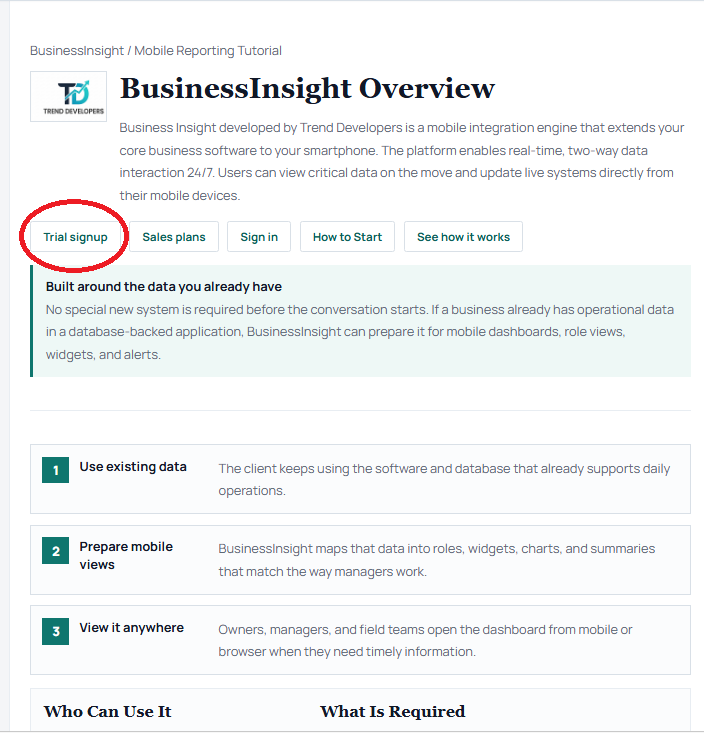
How to Start
Start your BusinessInsight trial setup, download your company launcher, connect the local Agent with the setup utility, build widgets in Query Designer, and view the first Test Role dashboard on the BusinessInsight mobile app.
Business Owner Path
Start the challenge and use the generated setup details to prove one live dashboard against a Test Role before a paid subscription begins.
IT or Partner Path
Place the Agent near the database, copy the launcher into the Agent folder, run the setup utility, and use Query Designer to create the first widgets.
BusinessInsight can read dashboard data through a small local Agent or through approved client API endpoints. After setup, your users sign in from a phone and see the dashboards assigned to their role.
Before You Start
Keep these items ready before you begin. Having them available prevents most setup delays.
You Need
- A Windows computer or server that can reach your company database.
- The database name, server name, and sign-in method used by your business software.
- A read-only database user when a username and password are required.
- The local database type, such as SQL Server, PostgreSQL, MySQL, Oracle, SQLite, or ODBC.
- If you prefer API widgets, a secure endpoint that returns the BusinessInsight metric JSON shape.
- Your BusinessInsight trial signup details after registration.
You Do Not Need
- You do not need to replace your existing business software.
- You do not need to manually prepare mobile reports.
- You do not need to open inbound firewall access to your database.
1. Start Your BusinessInsight Trial Setup
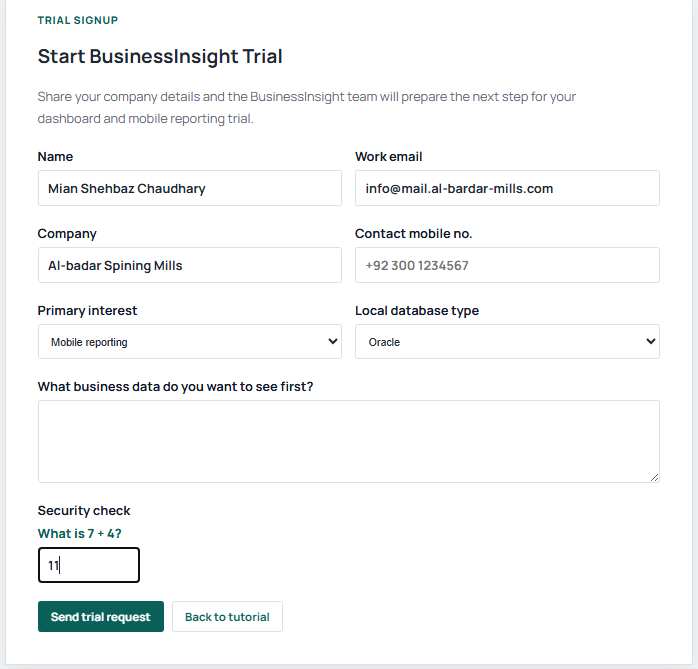
Click Contact Us from the top menu or start the trial setup from this page. Enter your name, work email, company name, mobile number, local database type, and the area where you want mobile reporting first.
After submission, BusinessInsight creates your company trial record, prepares the Agent identifiers, creates a Test Role, and registers a Test User against that role for the first mobile dashboard check.
The success page shows important setup values and a company-specific launcher download. The launcher is the file you will edit later with your local database connection string, so save it before closing the browser.
2. Save Your Setup Details and Test Credentials
After trial signup, copy the setup values into a safe place for your admin or IT helper. The Client Admin user name is tenant-specific, while the standard onboarding password is admin.client. BusinessInsight also shows the Test Role and Test User prepared for mobile validation.
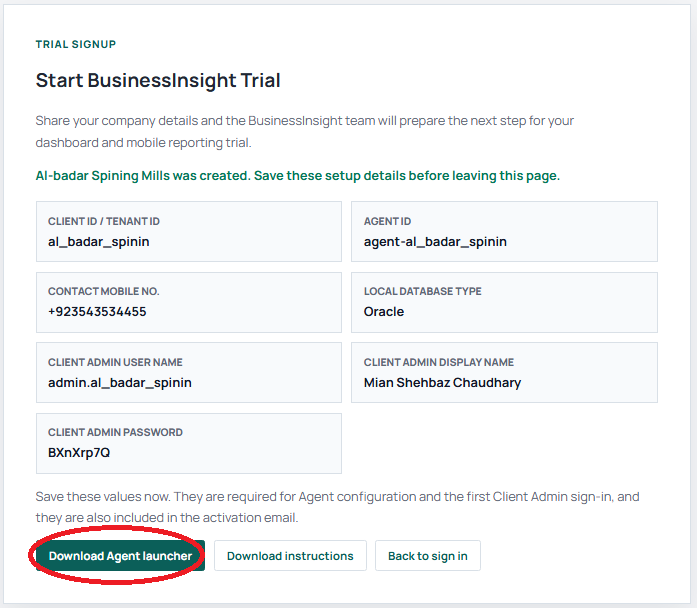
| Detail | What It Means | Where You Use It |
|---|---|---|
| Tenant ID or Client ID | Your company identifier inside BusinessInsight. | Already included in the downloaded Agent launcher. |
| Agent ID | The identity of the local Agent that will connect your database. | Already included in the downloaded Agent launcher. |
| Local database type | The database provider selected during trial signup. | Used to generate the sample connection string inside the downloaded Agent launcher. |
| Client Admin user name | The first admin account for your company. | Sign in to manage roles, users, widgets, and dashboards. |
| Client Admin password | The standard onboarding password, admin.client. | First admin sign-in for setup and widget management. |
| Test Role | The role used for the first proof dashboard. | Choose this role in Query Designer when saving the first widgets. |
| Test User | The mobile validation account registered against the Test Role. | Sign in from the mobile app to see the dashboard assigned to Test Role. |
Treat admin credentials like private business information. Share them only with the person responsible for the first setup.
3. Download the Agent Launcher
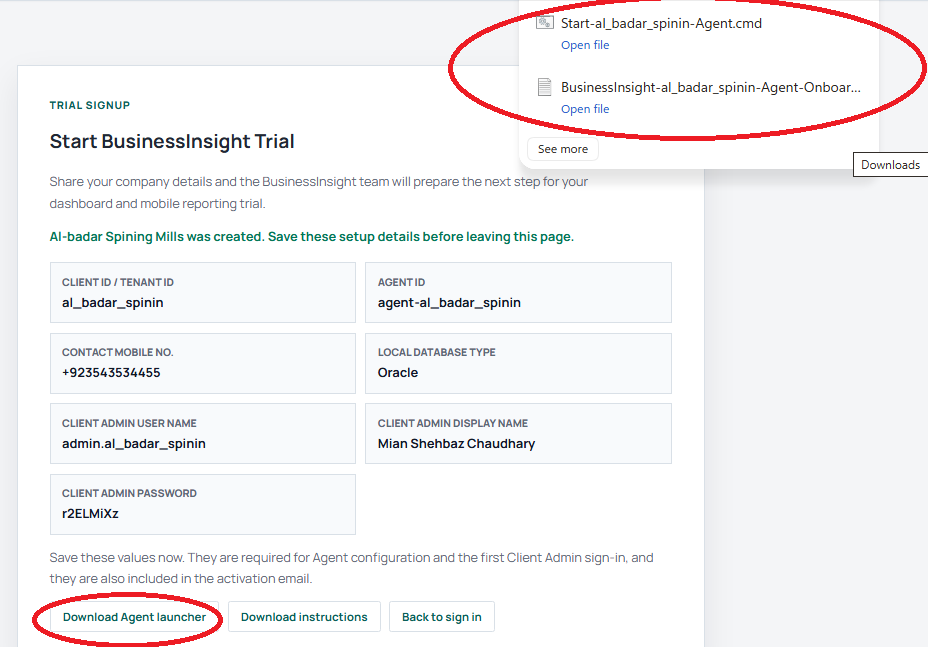
The Agent launcher is created for your company after trial signup. Its file name usually starts with Start- and includes your tenant name. Download it first, then keep it ready to place inside the Agent folder.
What to Do
- On the trial success page, click Download Agent launcher.
- Open your Downloads folder and find the downloaded .cmd file.
- Keep this file ready. You will copy it into the Agent folder, then let the setup utility update the connection settings.
Why It Matters
The launcher carries your Tenant ID, Agent ID, BusinessInsight site address, selected database type, and one editable sample connection string for your local database.
4. Download and Prepare the Agent Folder
The Agent package is the folder that runs on your computer or server near your database. Download it once, unzip it, and keep the folder in a stable location such as C:\BusinessInsight\Agent or another drive folder your company uses for software tools. The package does not need your client database connection string until you copy in and edit the launcher.
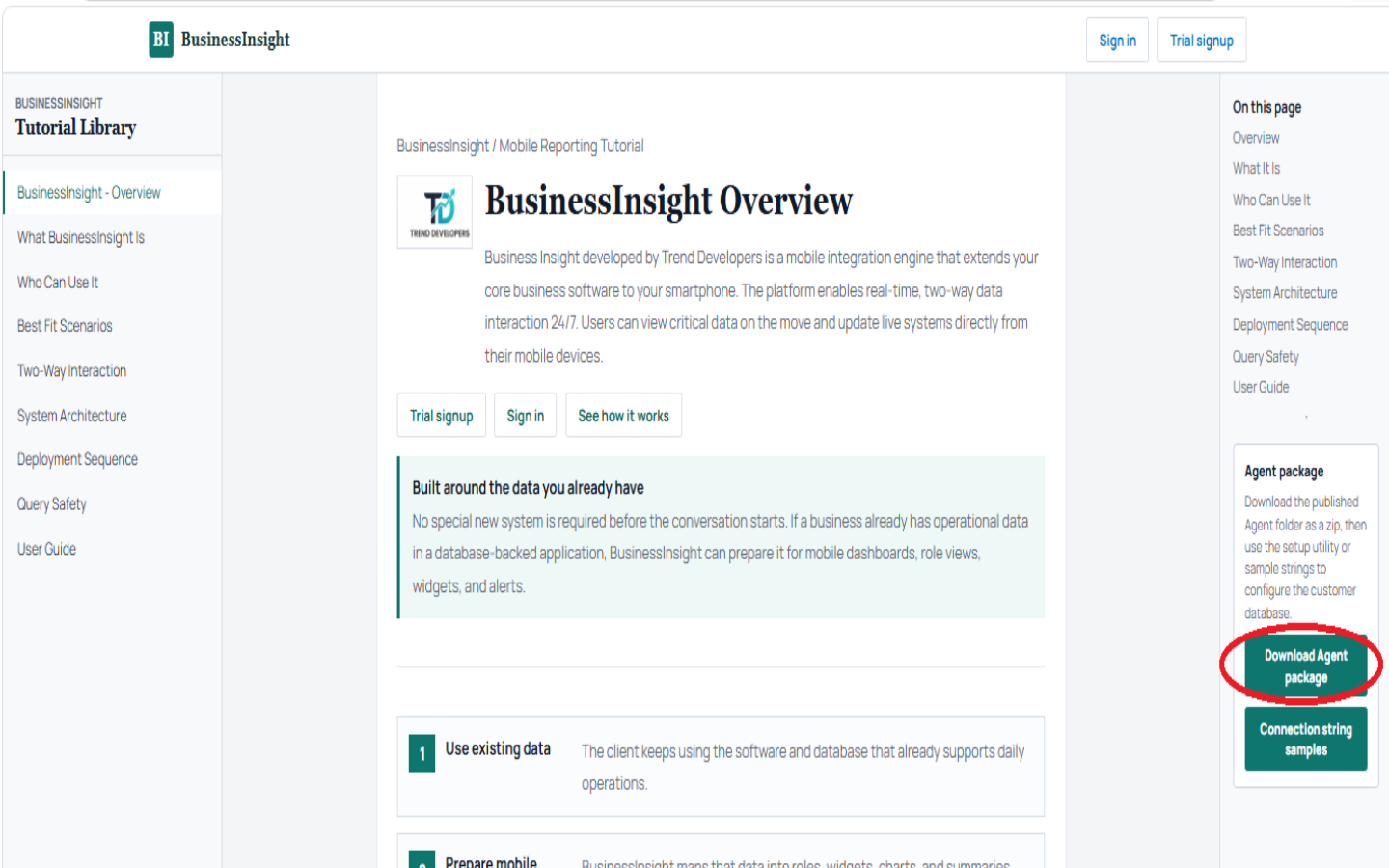
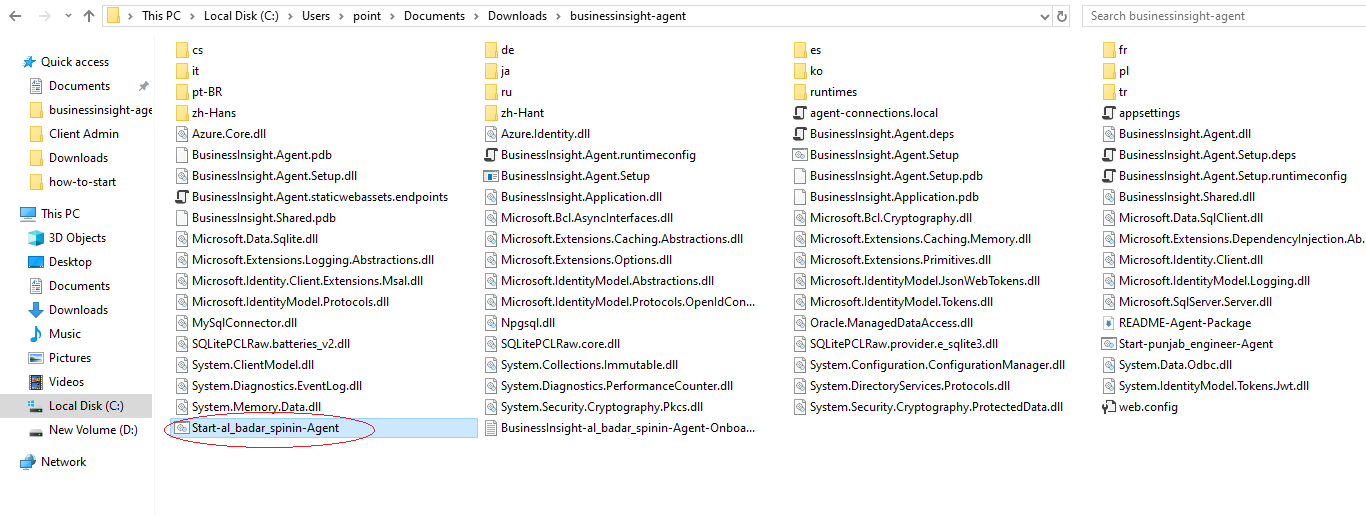
Use the Download Agent package link and save the zip file.
Right-click the zip file, choose Extract All, and select a permanent folder.
Move the downloaded Start-<tenant>-Agent.cmd file into the same folder that contains BusinessInsight.Agent.dll. Keep one launcher and one client database connection string in each Agent folder.
5. Run Setup Utility and Build Widgets in Query Designer
After the launcher is in the Agent folder, run the setup utility to connect your local database and open Query Designer. This is where you write, test, preview, and save widgets against the prepared Test Role.
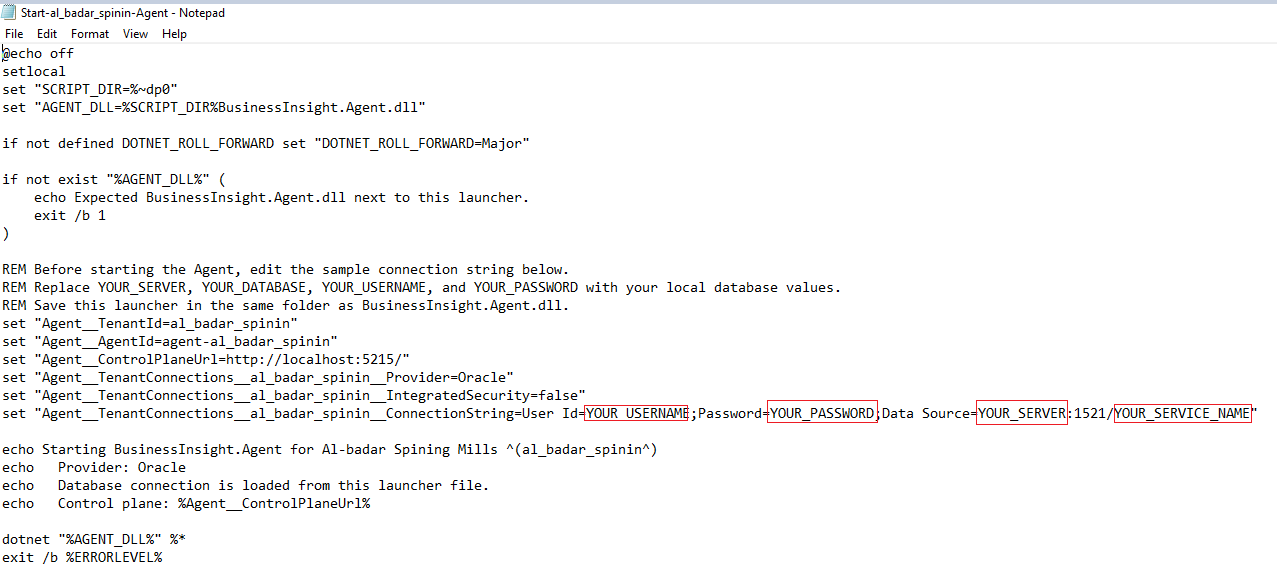
Connect the Database
- Open the Agent folder.
- Run BusinessInsight.Agent.Setup.cmd.
- Confirm the setup utility has found the copied Start-<tenant>-Agent.cmd launcher.
- Select the database type and enter the server, database, username, and password values.
- Click Test connection. Continue only after the connection succeeds.
- Click Save so the setup utility writes the tested connection into the launcher.
Use Query Designer
- Open Query Designer from the setup utility.
- Select Test Role as the dashboard role.
- Write a small read-only SQL query for the first widget.
- Click Preview and confirm the returned rows or value look correct.
- Choose the widget type, title, and display options, then click Save widget.
Start with a query that returns one clear business number, for example SELECT COUNT(*) AS Value FROM Orders. After that works, add richer cards, charts, and grids using the same Test Role.
For dashboard reporting, a read-only database login is usually enough. This limits risk because the Agent can read the data needed for charts without changing your business records.
Optional: Use API Endpoints as a Widget Data Source
If your company already exposes business data through REST APIs, a widget can call an endpoint instead of using Agent SQL. The endpoint can be hosted by the client, by an existing ERP/application server, or by an integration adapter prepared with Trend Developers.
The endpoint should return one metric JSON payload with display name, value, status, and either series points or summary rows depending on the widget type.
In Widget Authoring, open the widget definition and choose API endpoint as the data source.
Enter the relative or absolute endpoint URL, click Preview endpoint, confirm the returned data, then save the widget.
Trend Developers can help design or build API endpoints for a client system. Pricing is decided after reviewing the required widgets, endpoint security, data transformation, and complexity of each metric.
6. Start the Agent
After the launcher is in the Agent folder and its connection string has been updated, start the Agent so BusinessInsight can see your company data.
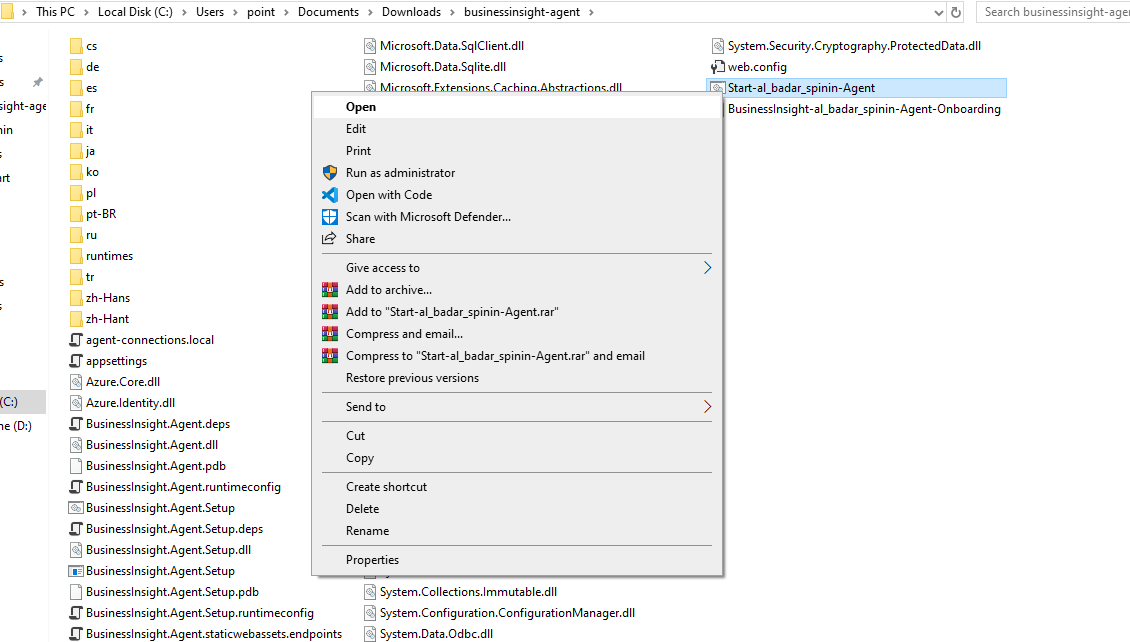
Find the folder where you extracted the Agent package and copied the company launcher.
Right-click the Start-<tenant>-Agent.cmd file and choose Open. If Windows asks for confirmation, confirm only if the file came from your BusinessInsight signup page.
When the Agent starts successfully, it registers with BusinessInsight and keeps listening for dashboard requests. Keep the window open during setup and testing.
Check that the launcher is in the same folder as the Agent files and that the sample connection string was replaced with the real local database values. If the launcher is missing, download it again from the trial success page.
7. Sign In as Admin and Review Widgets
After the Agent is running, sign in as Client Admin to review roles, users, dashboards, and widgets created during setup.
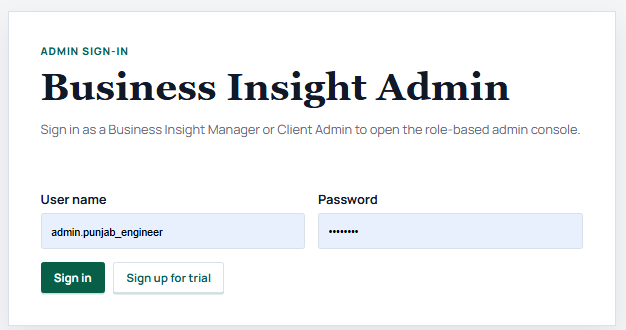
Purpose
This screen verifies the user before any company, role, dashboard, or widget configuration is shown. It protects tenant setup and prevents non-admin users from opening the administration console.
How to use it
- Enter the Client Admin user name shown after trial signup.
- Enter the standard onboarding password admin.client.
- Click Sign in to open the client admin workspace.
- Confirm that Test Role, Test User, and the first saved widgets are available.
8. Install the Mobile App and View the New Dashboard
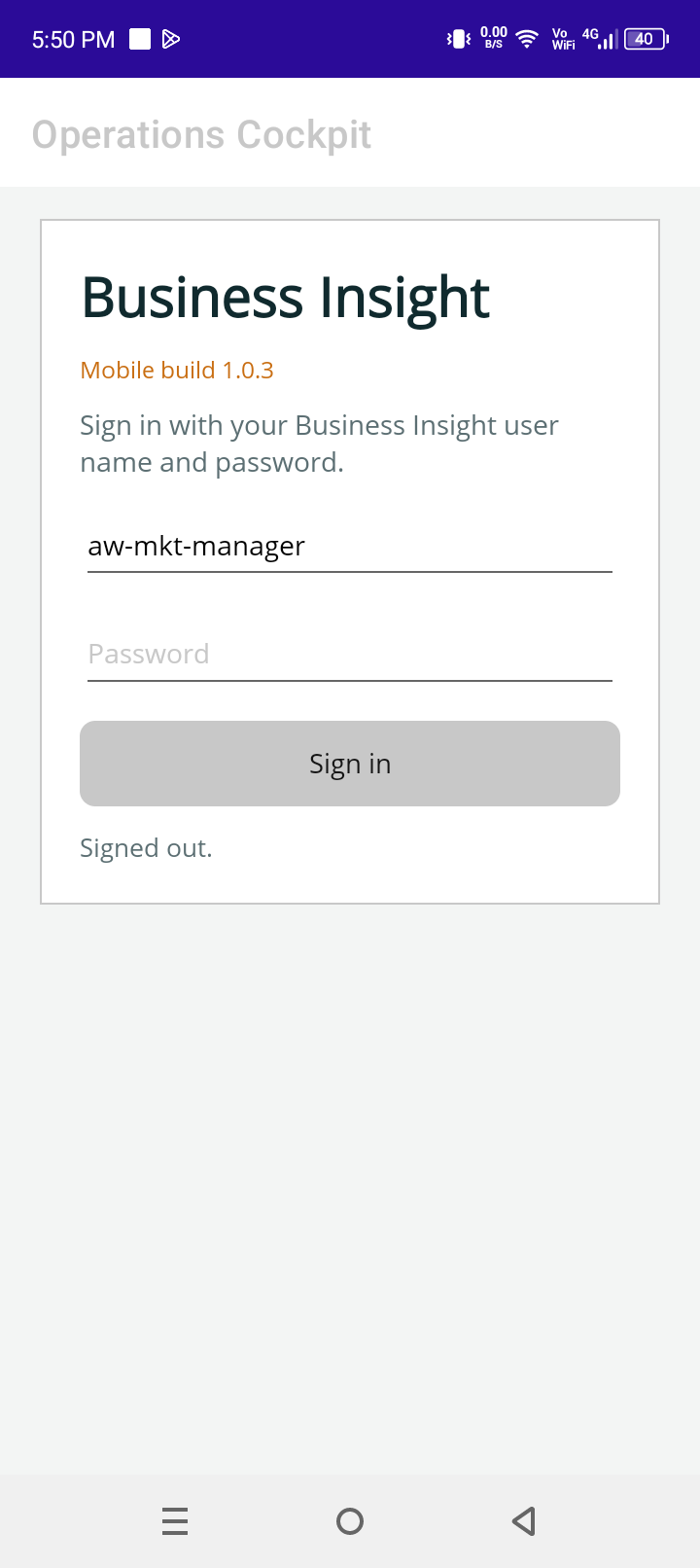
Install the App
- Install BusinessInsight Mobile from Google Play when it is available for your tester account.
- If Google Play is not available, download the APK from this page and install it on the Android device.
- Download BusinessInsight Mobile APK
View the Dashboard
- Open the BusinessInsight mobile app.
- Sign in with the Test User shown on the trial success page.
- Open the dashboard for Test Role.
- Refresh the dashboard after saving a new widget in Query Designer to see the latest live data.
Quick Checklist
- Trial signup submitted.
- Tenant ID, Agent ID, Client Admin credentials, Test Role, and Test User credentials saved.
- Company-specific Agent launcher downloaded.
- Agent package downloaded and unzipped.
- Launcher copied into the Agent folder.
- Setup utility used to test and save the local client database connection.
- Query Designer used to preview and save at least one widget for Test Role.
- Agent started successfully.
- For API widgets, endpoint URLs and sample JSON responses are verified in Widget Authoring.
- Client Admin can sign in.
- Test User can open the new Test Role dashboard on the mobile app.